Open any model
IFC2x3 and IFC4, several models at once. Large models load in the background and stay smooth with batched rendering.
4D and 5D construction planning · Windows and macOS
Tectra links your IFC model to your Primavera P6 or MS Project schedule. Play the build sequence, compare planned with actual, and check resources, costs and clashes over time. Your projects stay on your own computer.
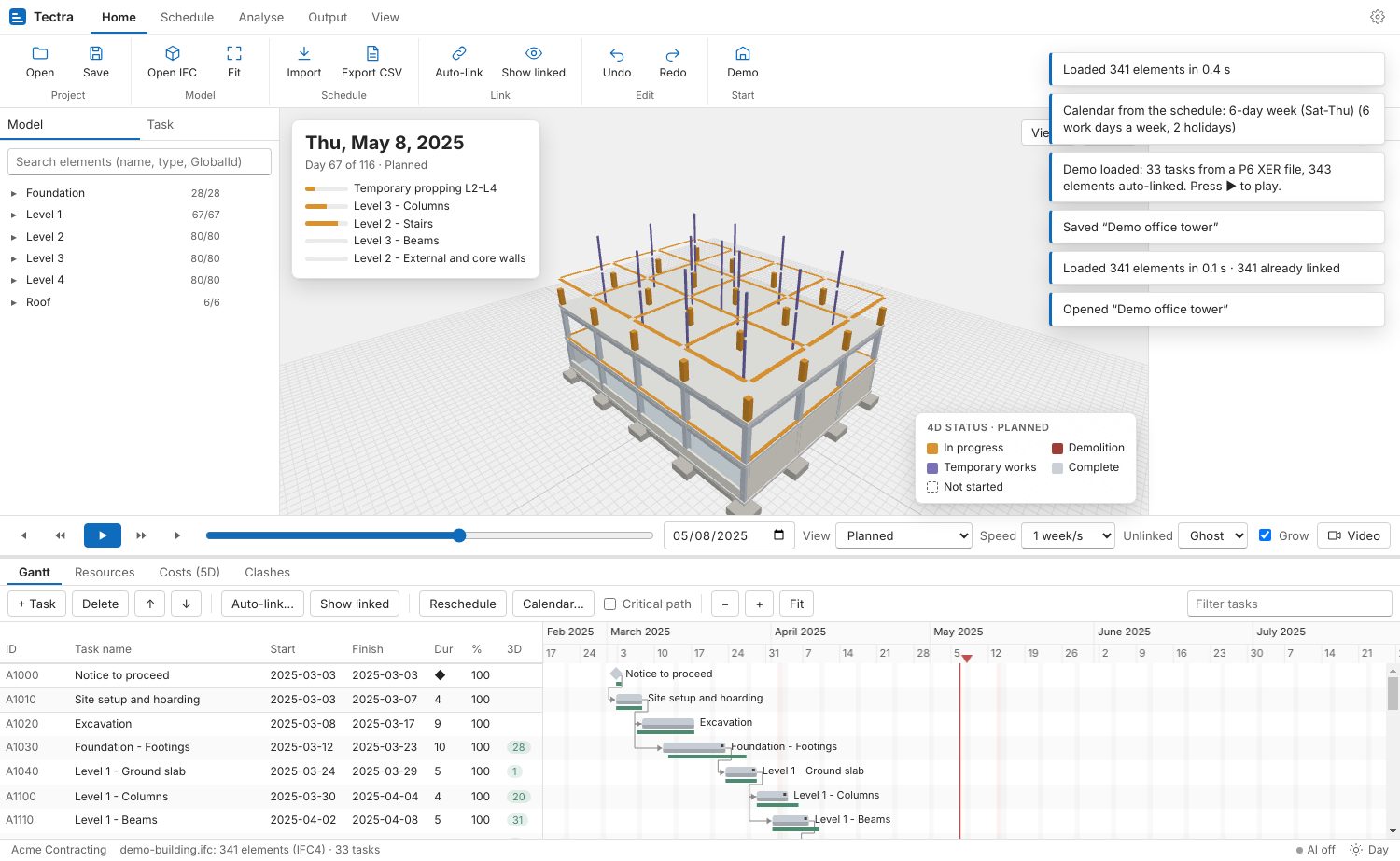
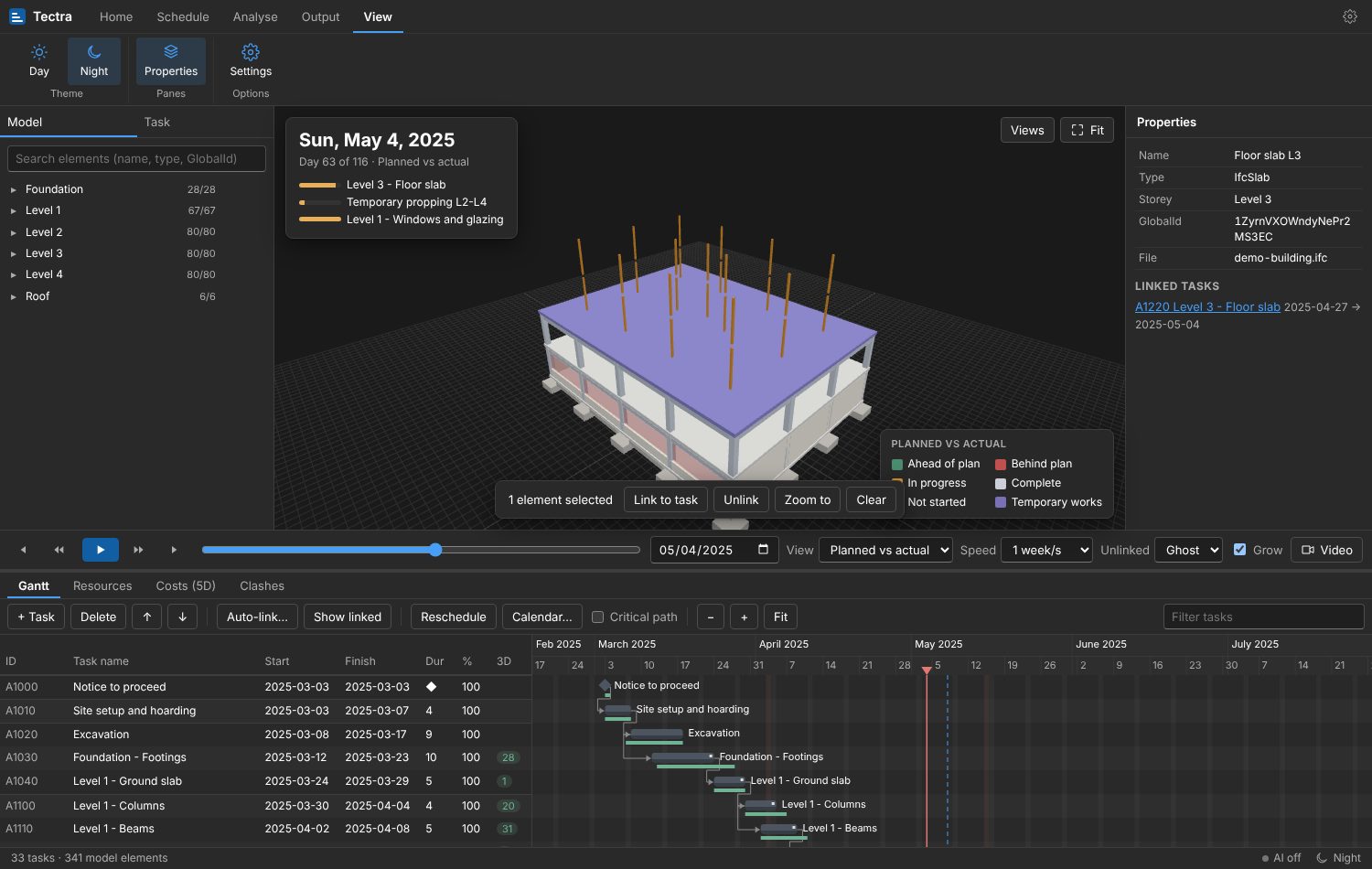
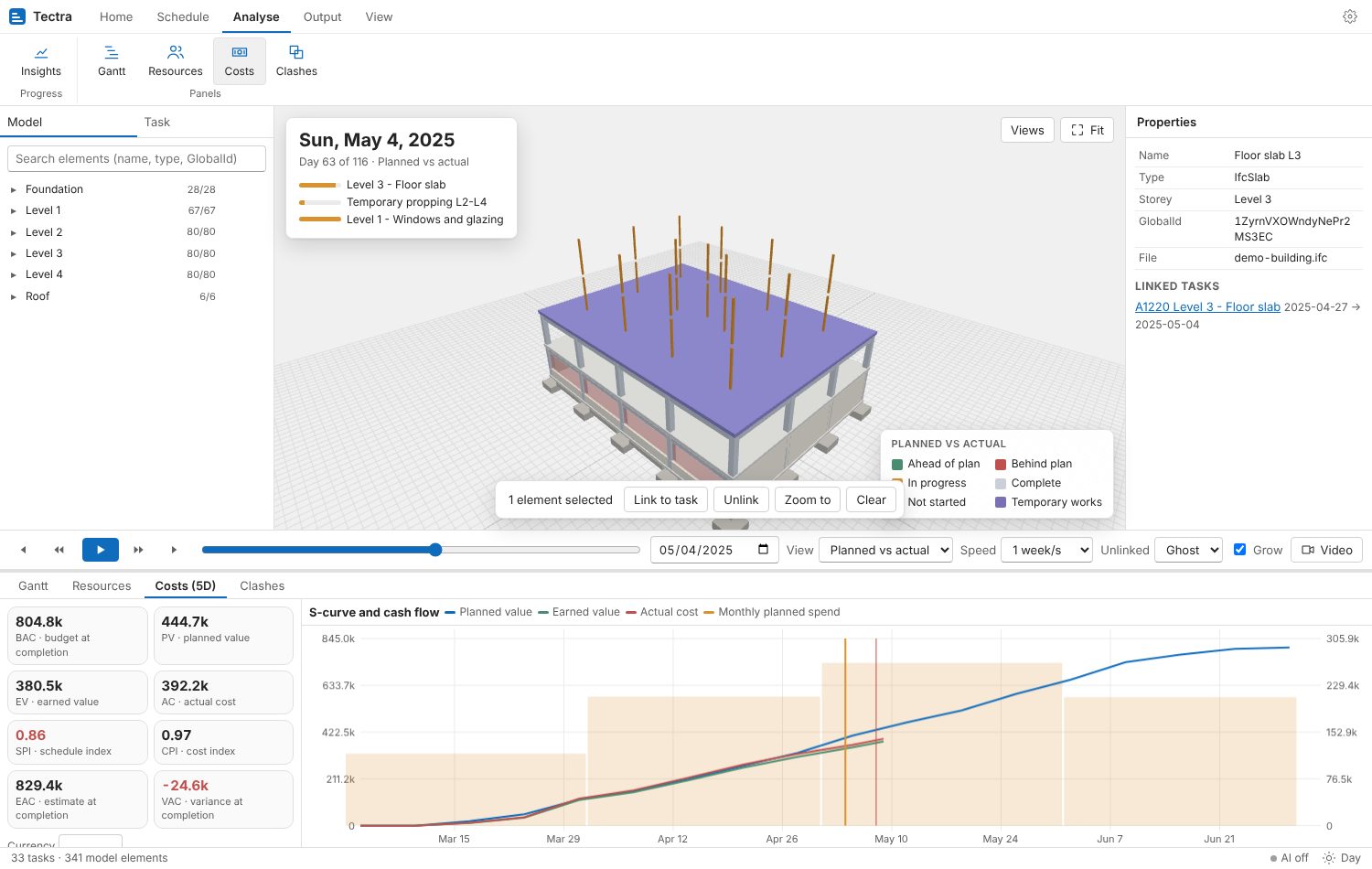
The familiar layout of a desktop planning tool: ribbon, model tree, 3D view, properties and Gantt.
IFC2x3 and IFC4, several models at once. Large models load in the background and stay smooth with batched rendering.
Primavera P6 XER and XML, MS Project XML and CSV. Activities, WBS, logic, lags, actuals, activity codes, calendars, resources and costs.
Matches activities to elements by level, element type, material, zone, classification code and mark, with a confidence score and a review screen. Works with English, Arabic and German names.
Play the sequence day by day. Elements grow while in progress. Planned vs actual colours elements ahead, behind or on plan at the data date.
Labour, equipment and materials per activity, with a histogram per resource, its capacity line and over-allocation.
Budget per activity, planned value, earned value and actual cost. SPI, CPI, EAC and VAC, an S-curve and monthly cash flow.
Finds activities that run at the same time and use the same space, including cranes, scaffolds and temporary propping. Click a clash to jump to its date.
Saved viewpoints and camera paths, exported to MP4 in HD, Full HD or 4K, with the date and progress on screen.
Work weeks such as Sunday to Thursday, hours per day and holidays. Critical path and reschedule with FS, SS, FF and SF links.
Drive Tectra from your own tools, the way Revit and Rhino can be scripted. The API runs on your own computer, is off by default, and only answers calls that carry one of your company's API keys.
One object model for projects, models, elements, tasks, links, calendars, resources, costs, simulation, viewer, clashes and video.
Add buttons, panels, rules, importers and reports inside Tectra. Each plugin declares its permissions, and you approve them when you install it.
REST and live events on 127.0.0.1, with client libraries for Python and .NET first, then JavaScript.
Turn on the API and create a key. In Tectra, open View › Extensions, switch on the local API, and create a key with the scopes read and write. The key is shown once, so copy it into your password manager.
Install the client library.
pip install tectraConnect and pick the project.
from tectra import Client

t = Client(api_key=os.environ["TECTRA_KEY"])   # talks to http://127.0.0.1:47100/v1
project = t.projects.get("Tower A")
Import this week's P6 update. Links to the model are kept.
project.schedule.import_file("updates/week-12.xer")Read the earned value at the data date.
kpi = project.evm(date=project.data_date)
print(f"SPI {kpi.spi:.2f}  CPI {kpi.cpi:.2f}  EAC {kpi.eac:,.0f}")
Render a progress video for the client.
project.renders.video(path="orbit", quality="1080p", out="week-12.mp4")| Method | Path | What it does |
|---|---|---|
| GET | /v1/projects | List the projects in the open company |
| GET | /v1/projects/{id}/tasks | Activities with dates, progress and links |
| PATCH | /v1/projects/{id}/tasks/{taskId} | Update dates or progress |
| POST | /v1/projects/{id}/links | Link elements by IFC GlobalId |
| POST | /v1/projects/{id}/schedule:import | Import an XER, XML or CSV update |
| POST | /v1/projects/{id}/autolink | Run auto-link with a template |
| GET | /v1/projects/{id}/evm?date= | Earned value and KPIs at a date |
| POST | /v1/projects/{id}/renders | Render a screenshot or MP4 |
| WS | /v1/events | Live events: task changed, date changed, render finished |
curl -H "Authorization: Bearer $TECTRA_KEY" http://127.0.0.1:47100/v1/projectsThe API is being built now. Names and paths may still change before release. Download Tectra below and we'll email you when the API ships.
Product video coming soon
Free for Windows 10 and 11 and for macOS. Enter your company or personal email. We'll send you a link to confirm it, then the download link.